Semantic HTML Elements Explained
Semantic HTML elements like nav, article, and main describe meaning, not just appearance, improving accessibility and SEO. How to use them.
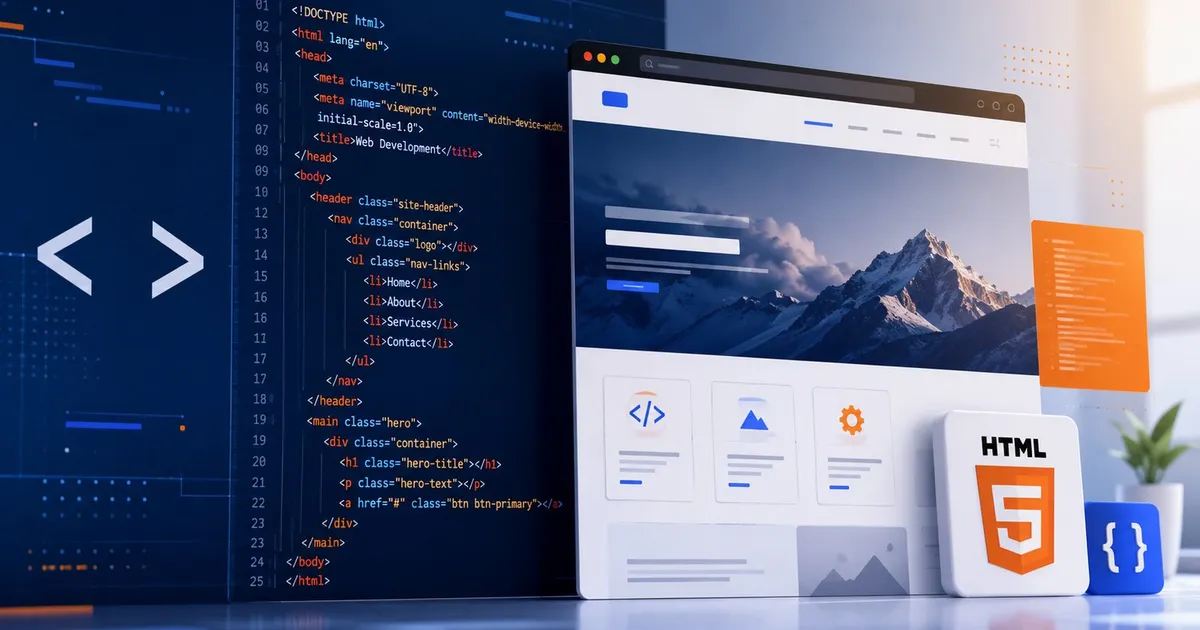
Semantic HTML elements are tags that describe the meaning and structure of their content, not just how it should look — <nav>, <article>, <header>, and <button> tell a browser, a screen reader, or a search engine what a piece of content is, where a generic <div> or <span> conveys nothing beyond “here is a container.”
The distinction matters more than it looks. A <div> styled to look exactly like a button is visually identical to a real <button> element, but it’s invisible to assistive technology as an interactive control, doesn’t respond to keyboard activation by default, and carries none of the built-in behavior browsers give real form controls for free.
Layout elements: describing document structure
HTML5 introduced a set of sectioning elements specifically to replace the sea of generically-named <div id="header">, <div id="nav"> markup that was standard practice before:
<header>— introductory content for a page or a section, typically containing a heading, logo, or navigation<nav>— a block of navigation links; screen readers can jump directly to it, and browsers can build a page’s navigation landmarks from it automatically<main>— the primary content of the page, exactly one per page, distinct from repeated boilerplate like headers and sidebars<article>— a self-contained piece of content that would make sense distributed or syndicated on its own, like a blog post or a news story<section>— a thematic grouping of content, typically with its own heading, when no more specific element fits<aside>— content tangentially related to the surrounding content, like a sidebar or a pull quote<footer>— closing content for a page or section, typically containing metadata like authorship or copyright
These elements form landmarks that assistive technology surfaces directly — a screen reader user can jump straight to <main> or <nav> without tabbing through everything above it, the same way a sighted user visually scans a page layout instead of reading every word from the top.
Interactive elements: getting behavior for free
Semantic markup pays off even more clearly for interactive controls, because native elements come with behavior built in that a generic element requires JavaScript to reimplement, often imperfectly:
<button>is focusable, keyboard-activatable with both Enter and Space, and exposed to assistive technology as a button role automatically. A<div onclick="...">styled to look identical gets none of this without manually addingtabindex, keyboard event handlers, and an ARIA role — and it’s easy to miss an edge case doing it by hand.<a href="...">is a real link — keyboard-navigable, works with “open in new tab,” shows up correctly in a browser’s link list, and gets appropriate cursor and status-bar behavior automatically. A clickable<span>styled as a link provides none of this out of the box.- Form elements like
<input>,<select>, and<label>come with built-in validation, keyboard interaction patterns, and — critically — a<label for="...">association that lets clicking the label text focus or activate the associated control, something that has to be manually reimplemented for a non-native custom control. <dialog>handles focus trapping and provides a built-in way to render on top of the rest of the page — see thedialogelement explained for what it gives you for free versus a hand-rolled modal built from styled<div>s.
Semantic HTML and accessibility
Semantic elements are one of the highest-leverage, lowest-cost accessibility wins available, because assistive technology is built to understand them without any extra work from the developer — see web accessibility basics for the broader picture of what accessible markup involves beyond element choice alone. A page built from correctly chosen semantic elements gets a working document outline, working landmark navigation, and correctly announced interactive controls essentially for free. The same page built entirely from generically styled <div>s needs ARIA roles, tabindex, and custom keyboard handling bolted on by hand to reach the same baseline — and ARIA attributes only describe a role; they don’t provide the underlying behavior a native element has automatically. This is often summarized as “the first rule of ARIA is don’t use ARIA” when a native element already does the job.
Semantic HTML and SEO
Search engines use document structure as a real signal, not just page content. A properly nested heading hierarchy and correctly used <article>, <nav>, and <main> elements help a crawler understand which content on a page is primary versus supplementary, which affects both indexing and how content gets summarized in search results. This sits on top of the DOM that both the browser and any crawler parse the page into — semantic tags don’t change what content exists on the page, but they change how confidently a machine can interpret its structure.
When a generic element is still the right choice
Not every container needs semantic meaning — a <div> used purely for CSS layout purposes, like a flex or grid wrapper with no independent meaning of its own, is exactly the right tool. The goal isn’t to eliminate <div> and <span> entirely; it’s to reach for a semantic element whenever one actually matches the content’s role, and fall back to a generic container only when none does.
The takeaway
Semantic HTML elements describe what content is, not just how it should be styled, and that distinction is what lets browsers, screen readers, and search engines understand a page’s structure without extra work. Interactive elements like <button> and <a> come with keyboard behavior and assistive-technology support built in; a generic element trying to look the same needs it all reimplemented by hand, and rarely gets every edge case right. Reach for the semantic element that matches the content’s actual role first, and use generic containers only for pure layout wrapping where no more specific element fits.
Keep reading
 Takina · · 4 min read
 The HTML inert Attribute, Explained
The inert attribute removes an element and its children from focus, click handling, and screen reader access in one line, without hiding it visually.
 Takina · · 4 min read
 The HTML dialog Element Explained
The native dialog element gives you modals and popovers with built-in focus trapping and accessibility, no JavaScript library required. Here's how it works.
Takina · · 4 min read What Is Web Accessibility (a11y)? A Practical Guide
Web accessibility (a11y) means building sites usable by people with disabilities. The core principles, semantic HTML, ARIA, and common patterns.